KidCheck Admin App
Overview
The KidCheck Admin App gives you a convenient mobile way to manage check-ins and access key administrative features. Download the app from the Apple App Store (iOS) or Google Play Store (Android) if you haven’t already.
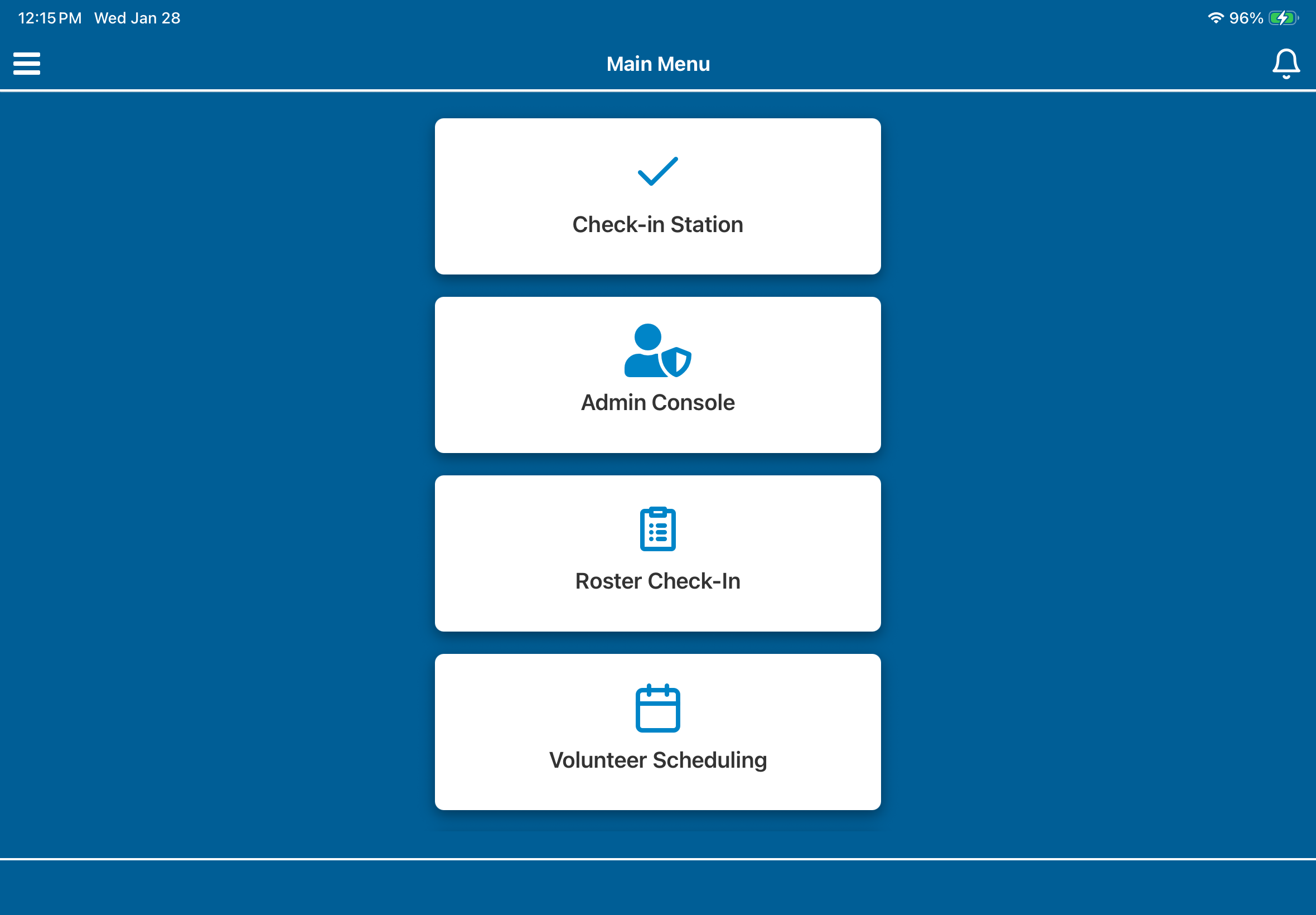
With the Admin App, you can:
Process mobile check-ins
Mobile Check-In
- Open the Admin App and select Check-In Station from the main menu.
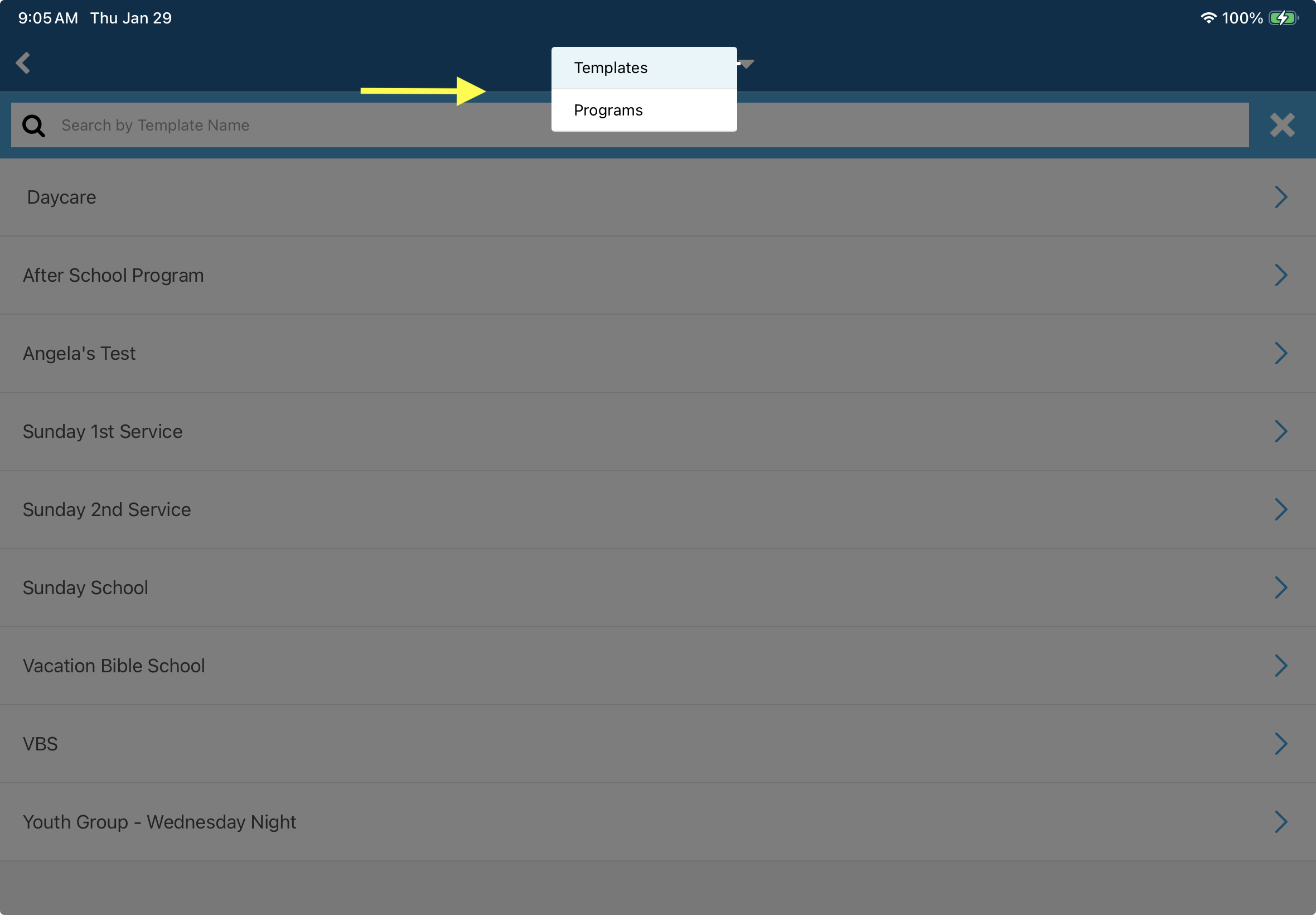
- At the top of the screen, choose Templates or Programs from the dropdown. (Note: The Programs option is available only for Plus and Premier subscribers.)
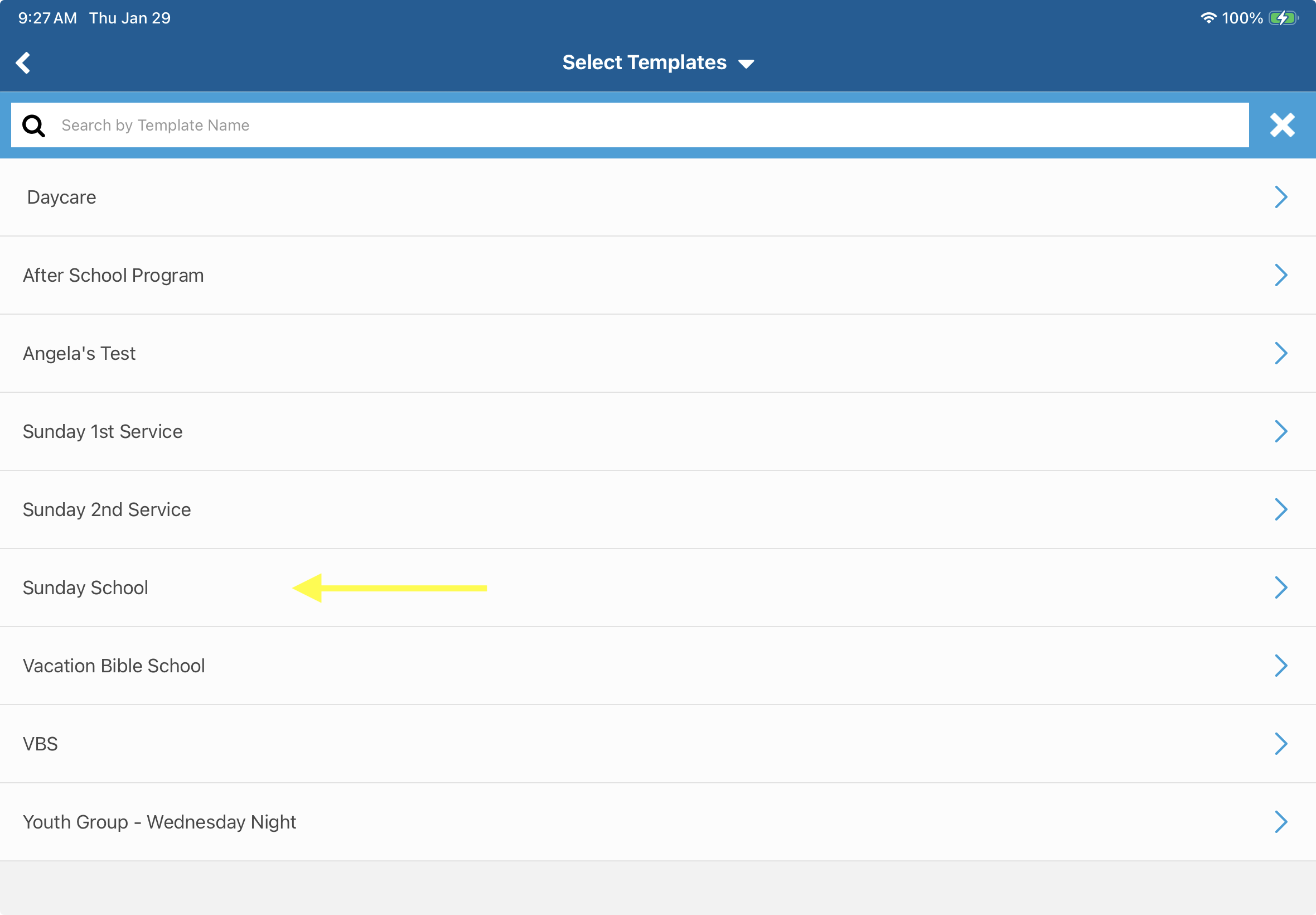
- Select the desired template or program to start mobile check-in.
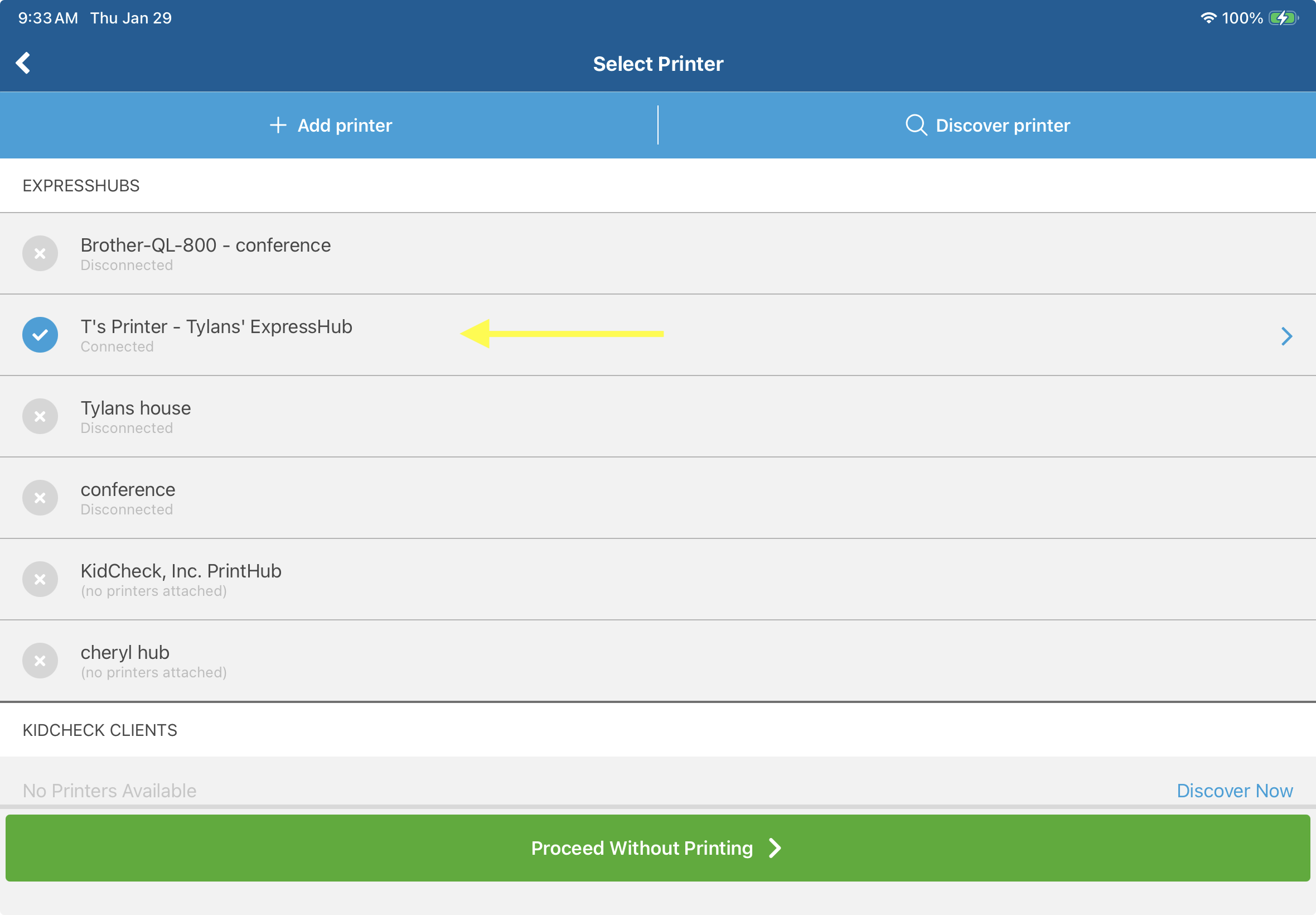
- Select the ExpressHub/Printer that you will be using for mobile check-in.
- Enter the guardian’s phone number in the provided field to begin processing check-ins.
Access Admin Console features
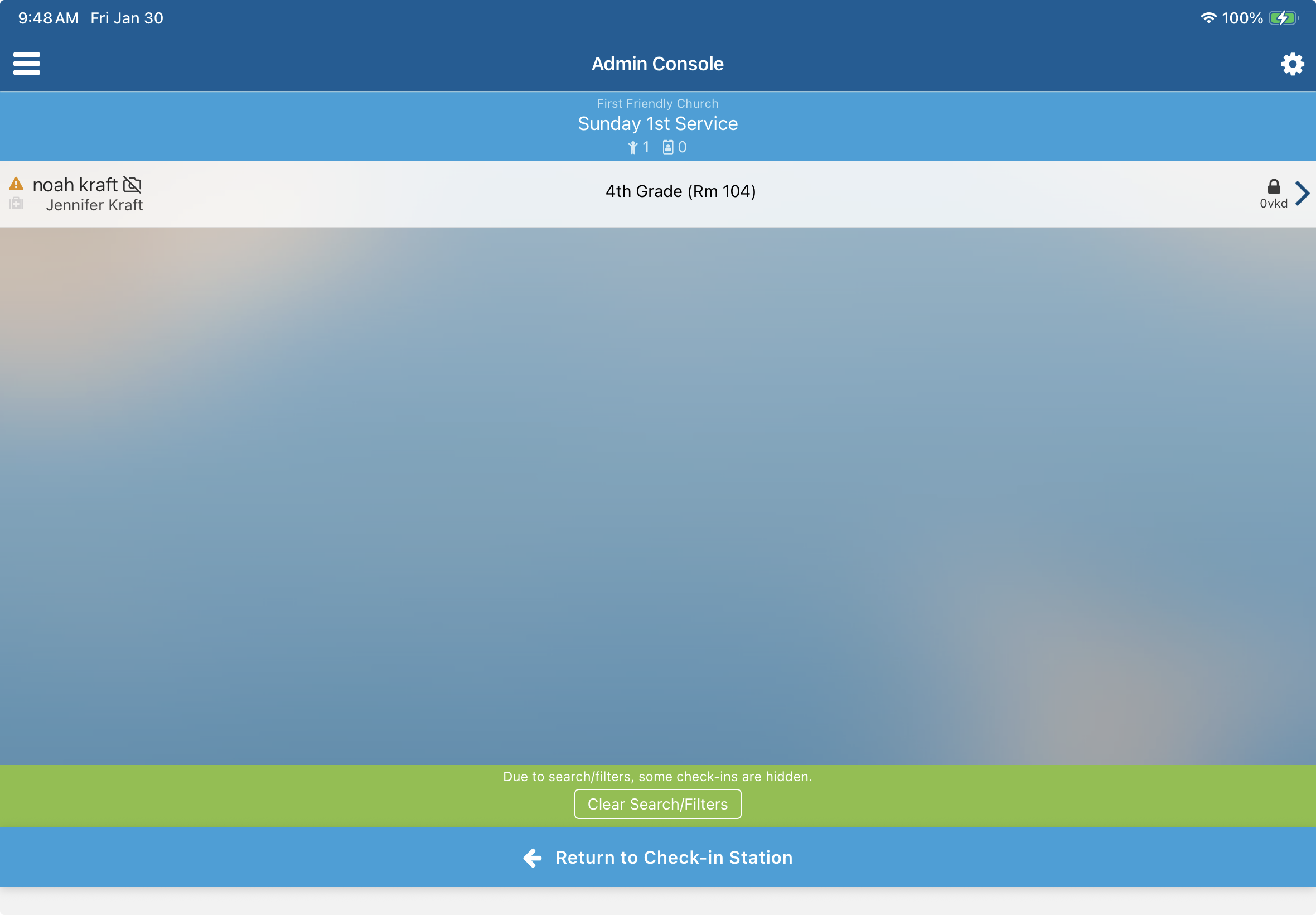
The Admin Console provides quick access to a live roster of checked-in children and several helpful tools.
Live Roster
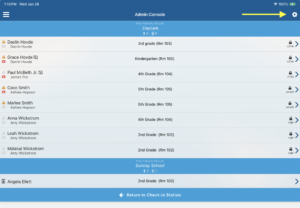
- The live roster is the main screen when you open the Admin Console.
- Use it to verify check-ins or open a child’s profile.
- To search or sort the roster, tap the gear icon in the upper-right corner.
Common Admin Console Tasks
- View Medical Information - Select a child from the roster → scroll to Check-In Details → view the medical info provided by the guardian.
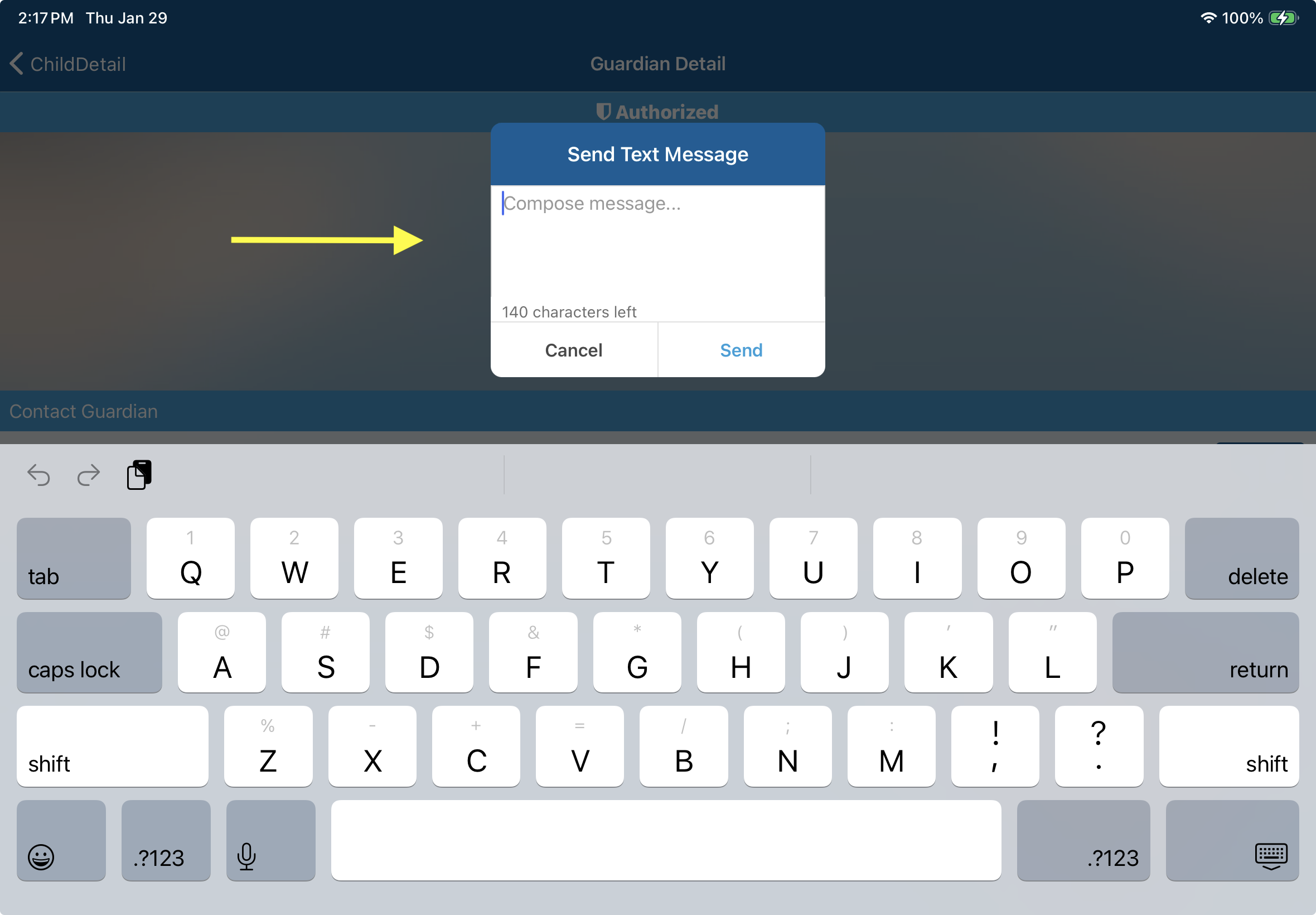
- Send Emergency Text to Guardian - Select a child → choose a guardian → tap Text → enter your message → tap Send.
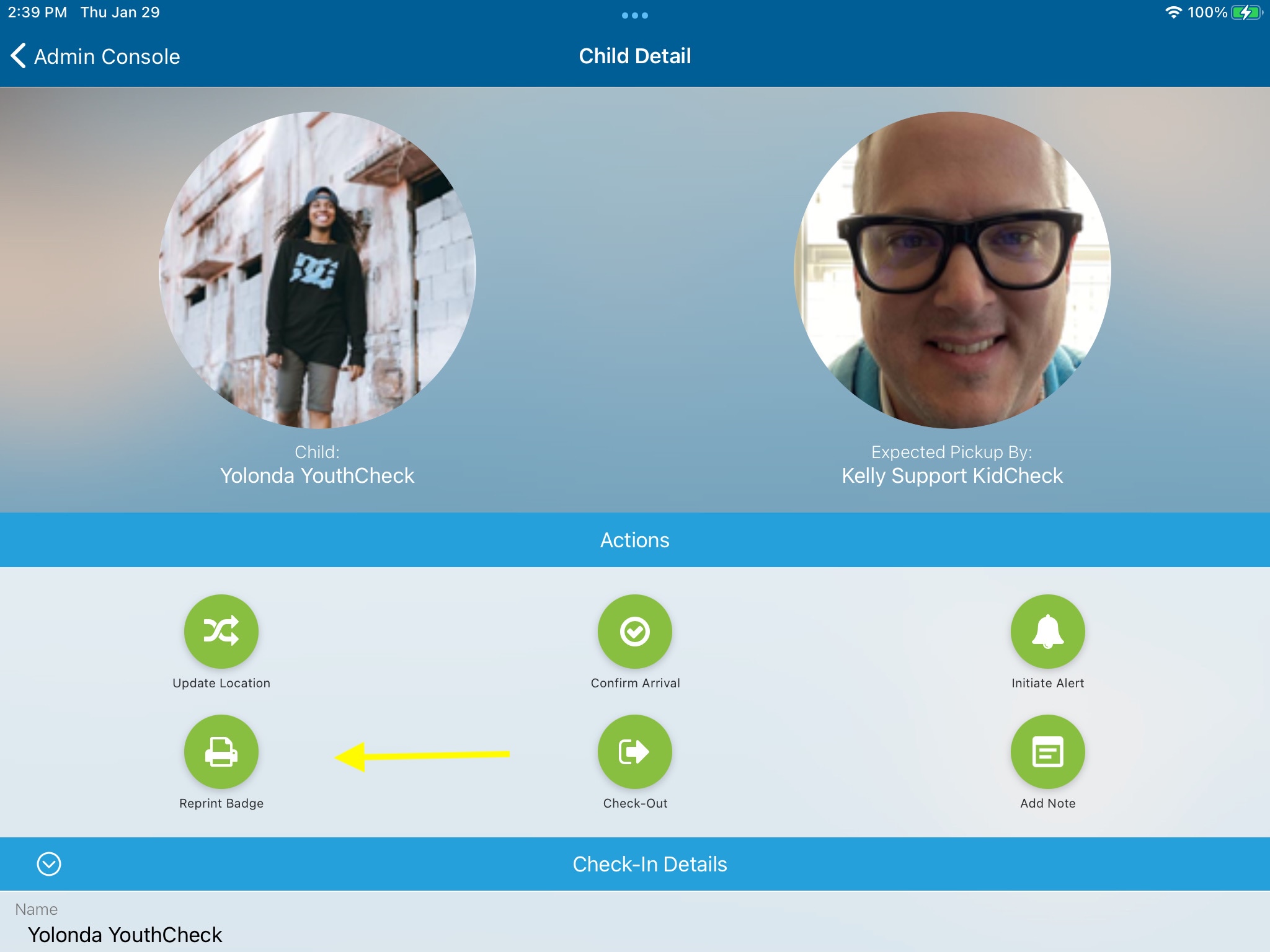
- Reprint Name Badge - Select a child → tap Reprint Badge. Note: Your mobile device must be on the same network as the ExpressHub/printer.
- Update Child Location - Select a child → tap Update Location → choose the new template and location → tap Submit.
- Add Note to Child Profile - Select a child → tap Add Note → enter the note → tap Save.
- Use Alerts (Location Change Notification) - From one device: Select a child → tap Initiate Alert. From another device running the Admin App: Tap the green Pickup Alert button → tap Acknowledge to confirm arrival.
- View Survey Responses - Select a child → scroll to Survey Details to see the current response.
- Process Check-Out - Select a child → tap the green Check-Out button → choose the authorized guardian from the popup → tap Check-Out to complete.
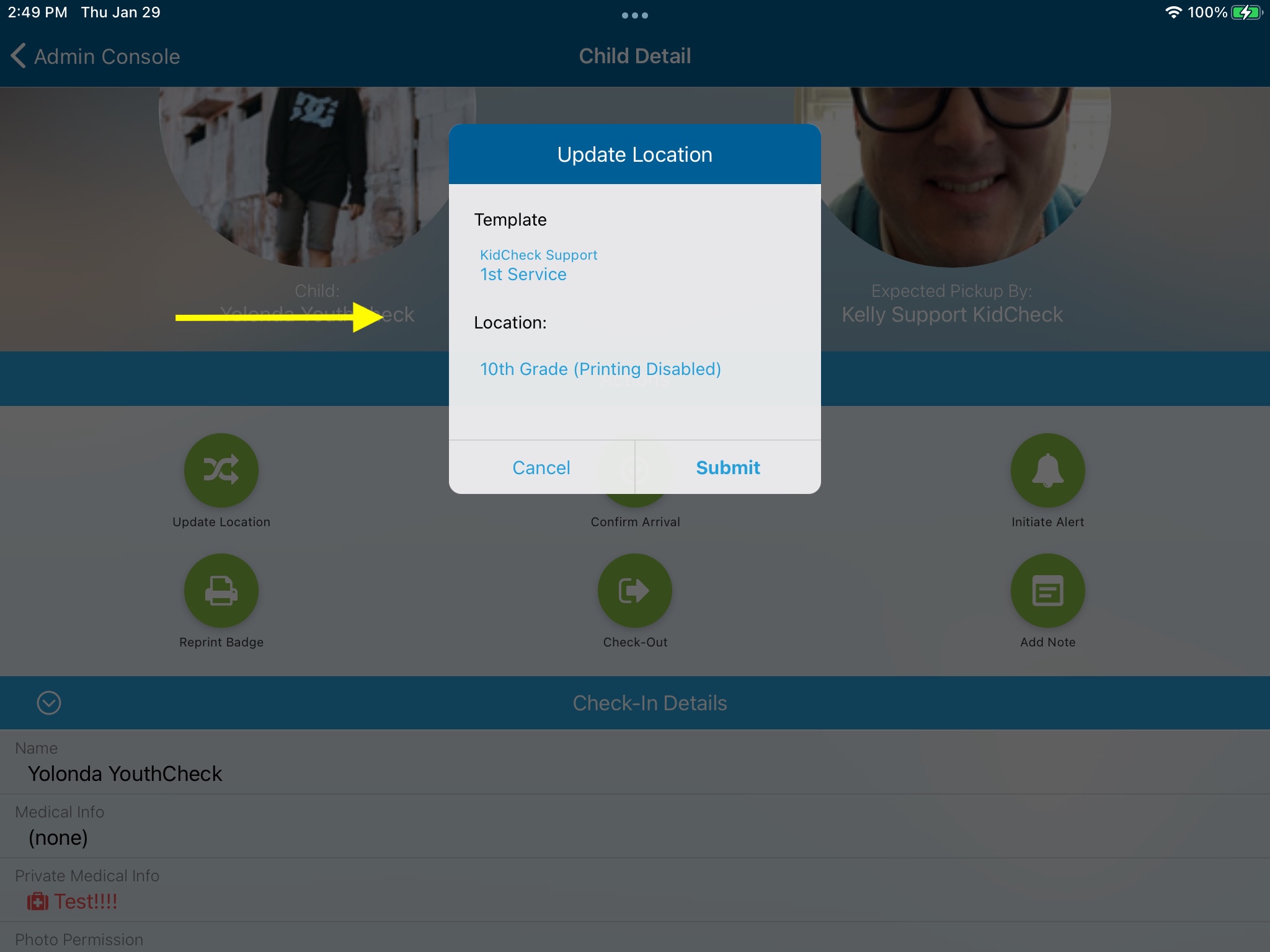
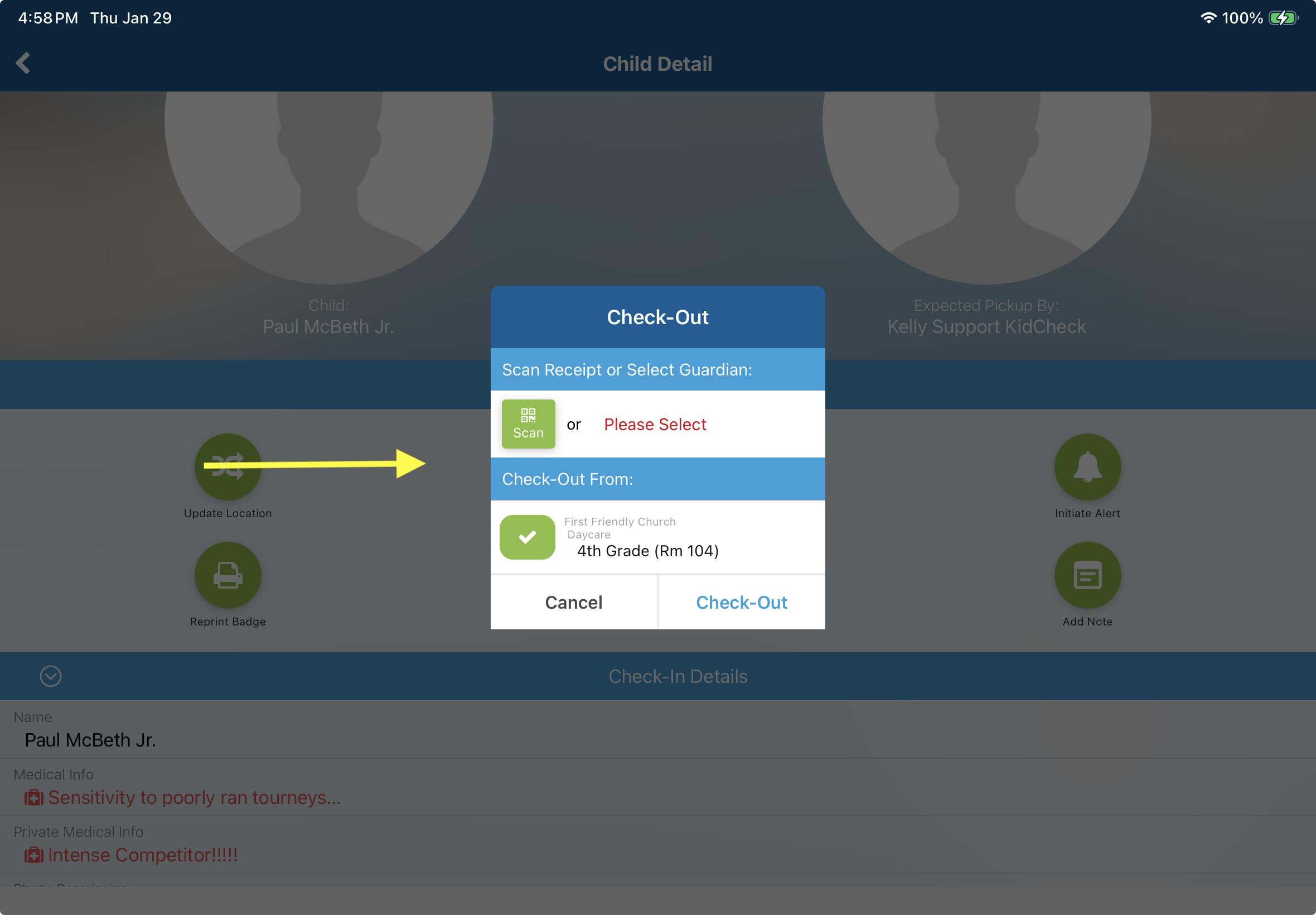
For a walk through on the admin console features, click this this support link - https://www.kidcheck.com/support-video/kidcheck-admin-console-app-walkthrough-2/
Perform Roster Check-Ins
- Open the Admin App and select Roster Check-In from the main menu.
- At the top of the screen, select Templates or Programs from the dropdown.
- Choose the specific template or program you want to use.
- Select the ExpressHub/printer for printing guardian receipts and name badges.
- Choose the roster you want to use (search or check the box next to the desired roster).
- To check in a child:
- Check the box next to the child’s name.
- Use the dropdown to select their check-in location.
- Tap the green Submit button.
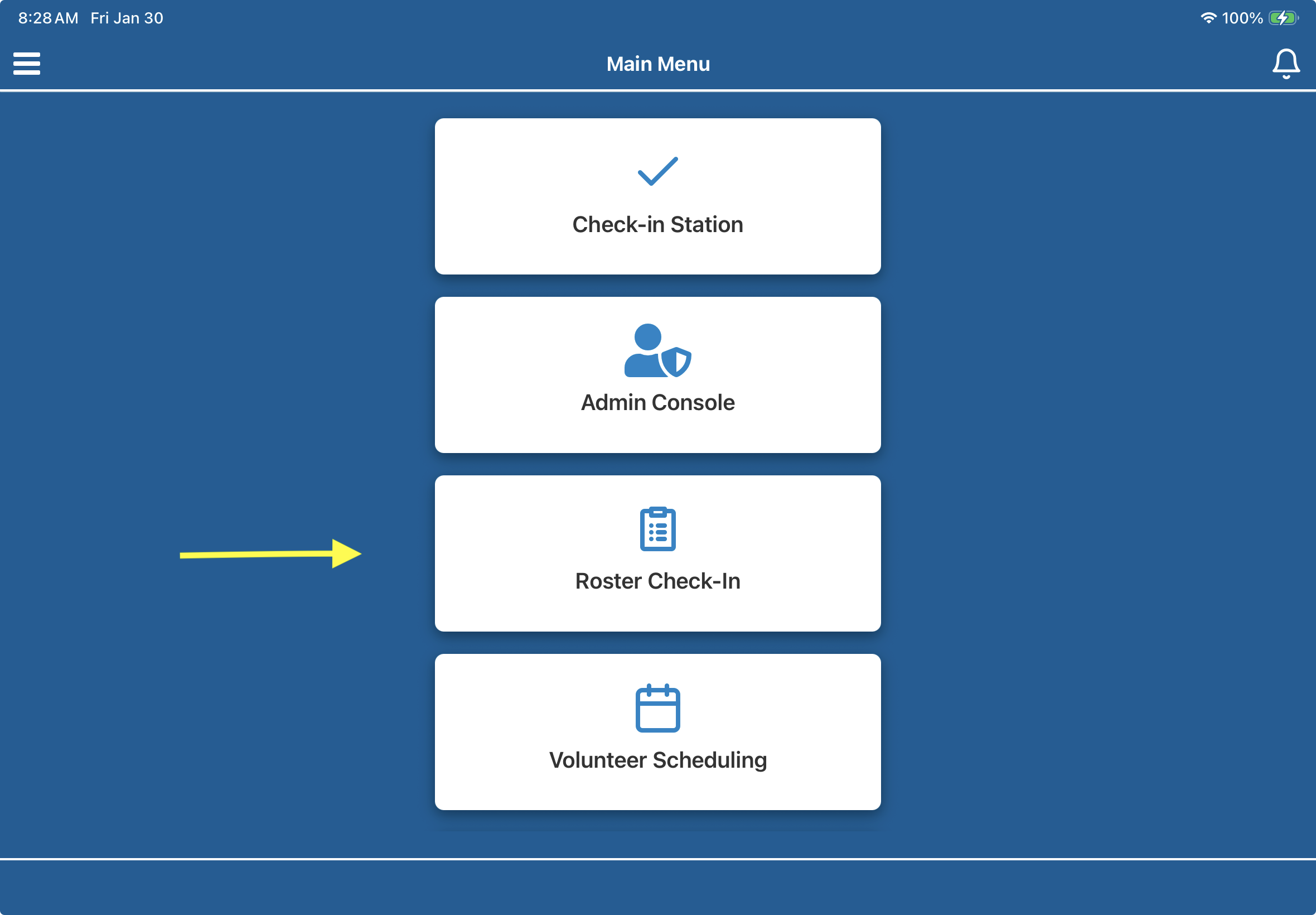
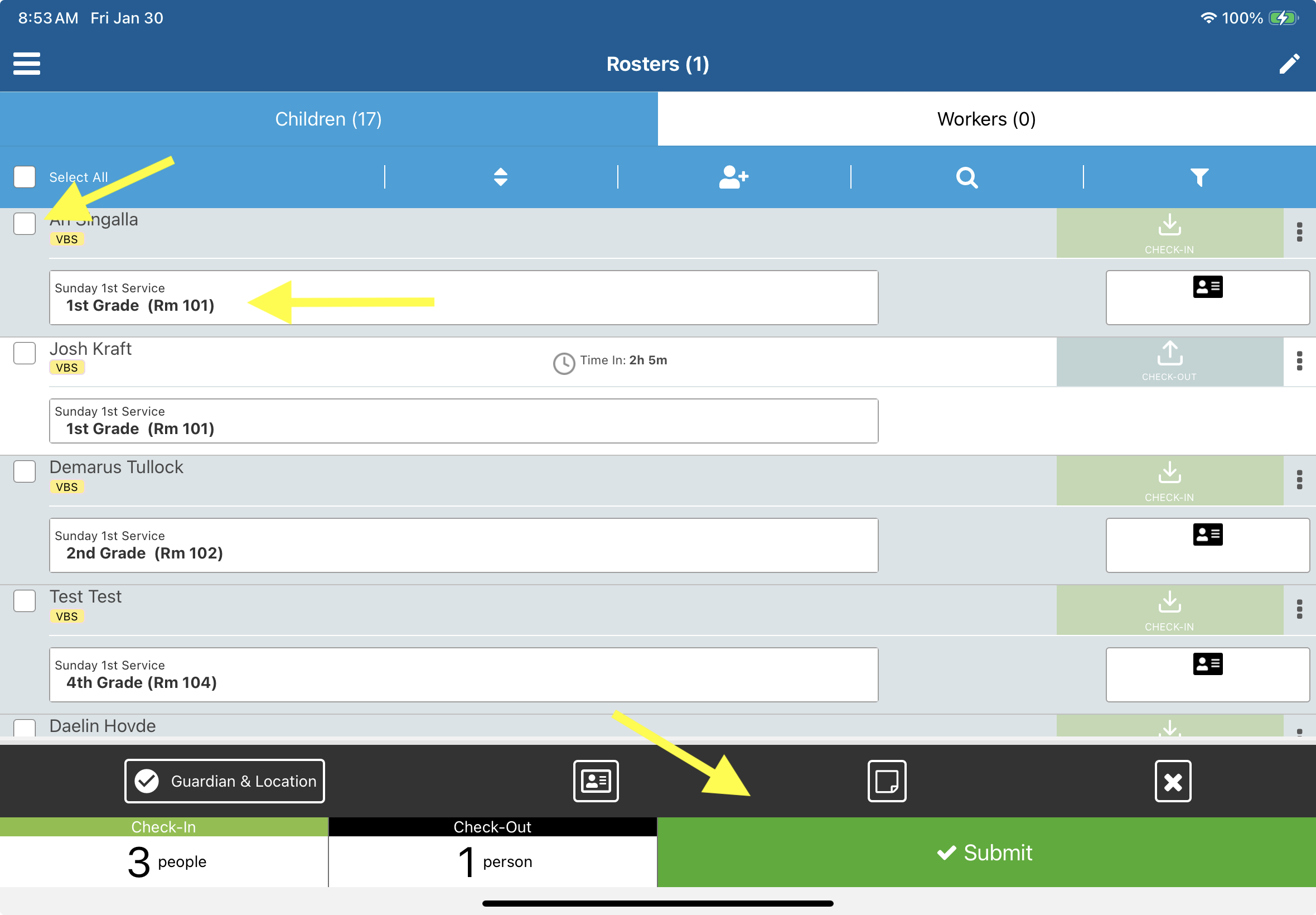
For info on how to create a roster, click this support link - https://www.kidcheck.com/support-video/how-to-create-a-roster/
Manage Device Licenses
License Management
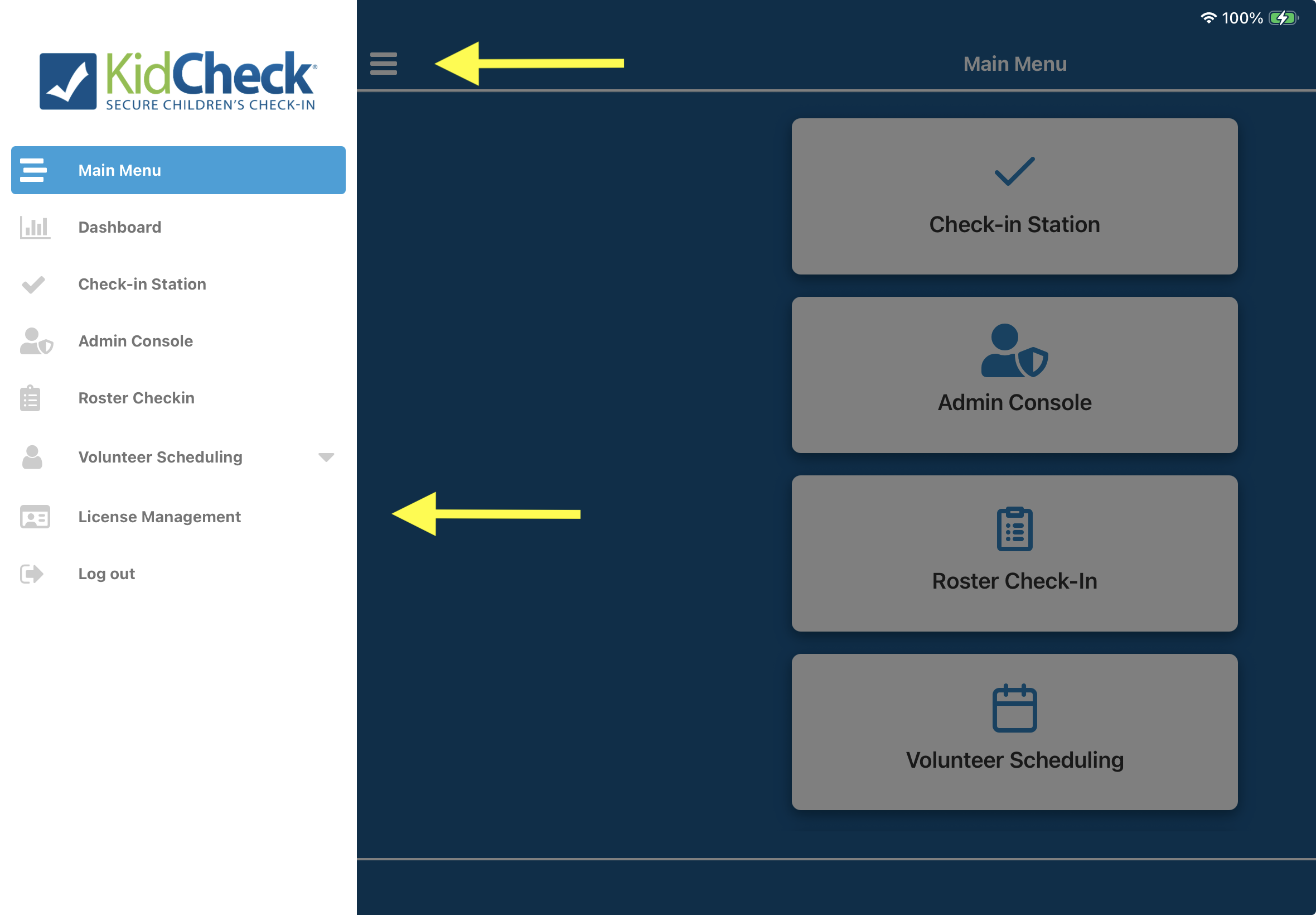
- Sign into the KidCheck Admin App and choose the hamburger menu on the left.
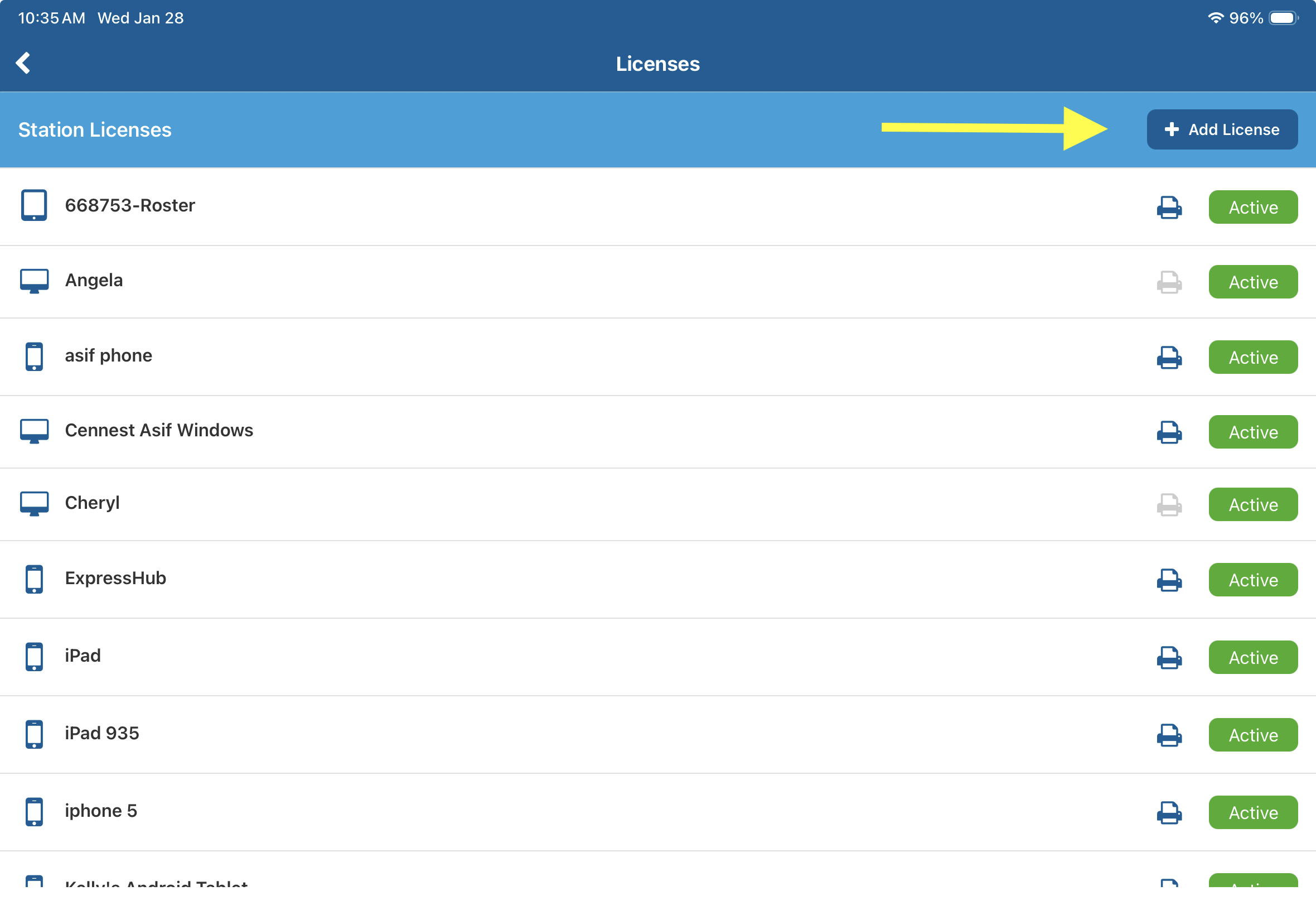
- Choose License Management.
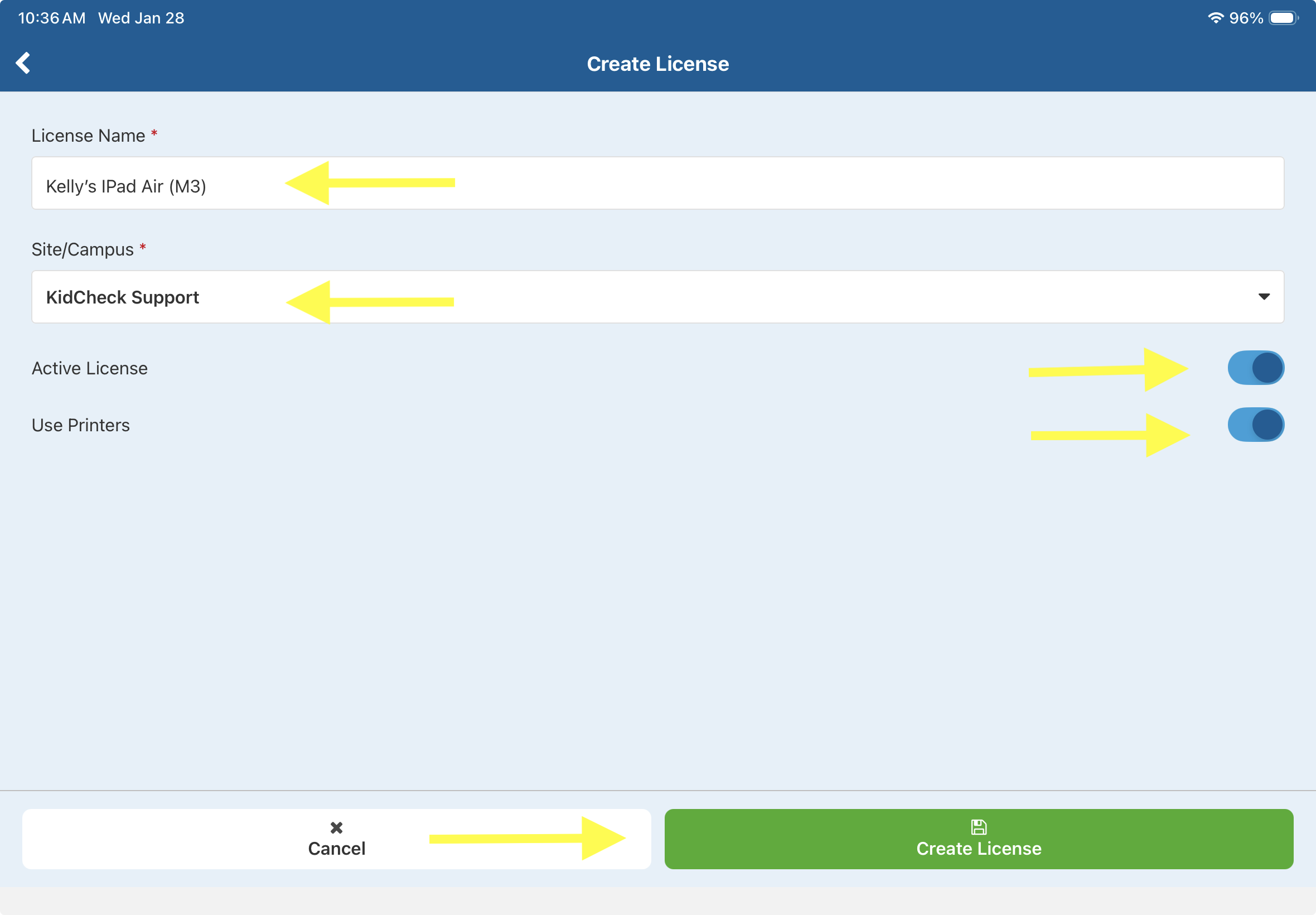
- If your device is a new kiosk device, select Add License and fill out the required fields and choose “save”. Start processing check-ins!
Schedule volunteers
Volunteer Scheduling
For detailed steps on scheduling volunteers in the Admin App, please refer to our tutorial: Volunteer Scheduling – KidCheck Admin Console App
Access Check-In Counts from the Dashboard
Dashboard
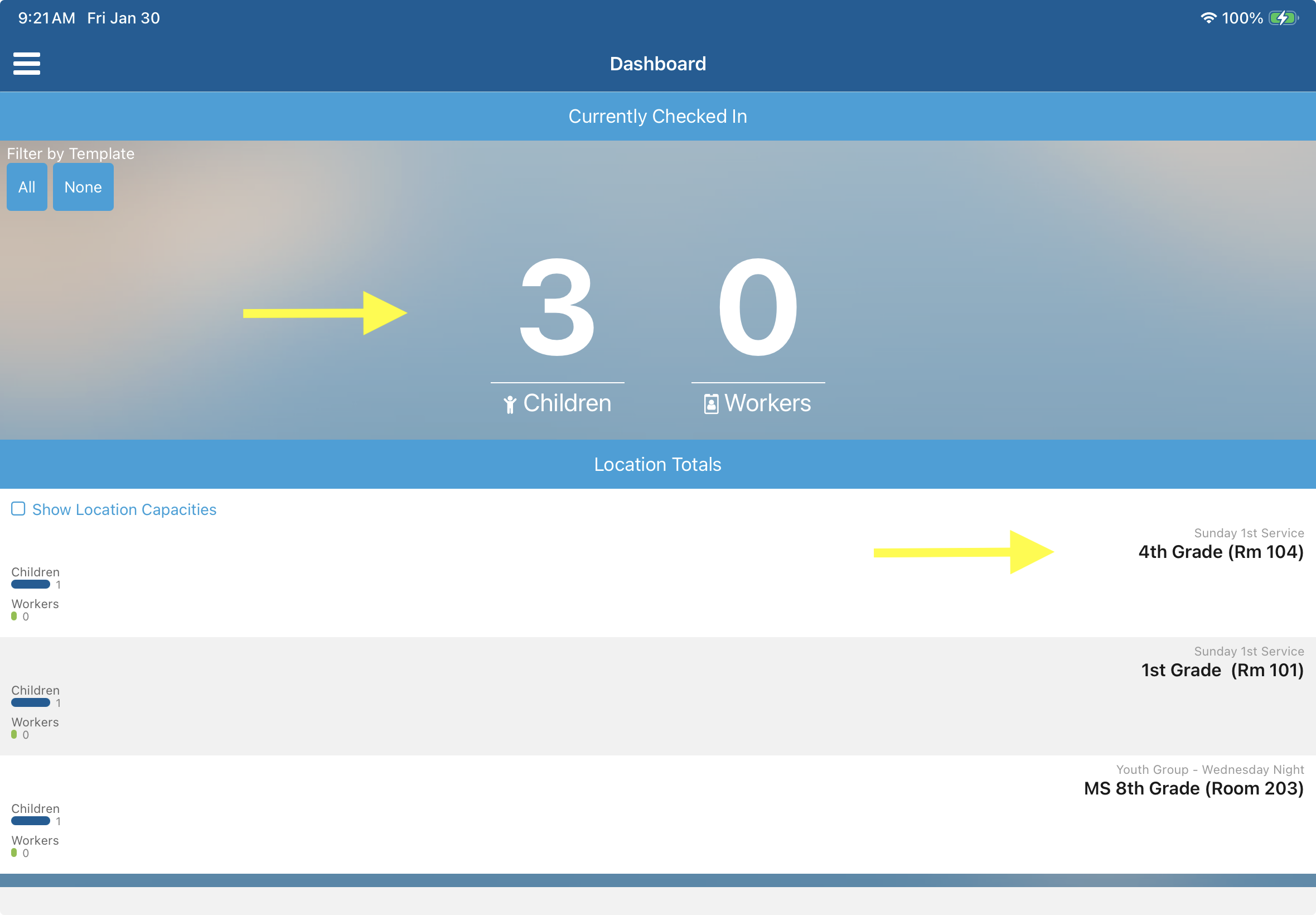
- Sign into the KidCheck Admin App and choose the hamburger menu on the left.
- Choose Dashboard.
- Quickly access a Currently Checked In count of Children and Workers.
- Easily select a Location/Age group from the listing to view children that are checked in there.
For a video walk through on the KidCheck Admin App, click here – KidCheck Admin App
Need More Help?
If you have questions or run into issues, contact KidCheck Support at 208-538-2000, or email support@kidcheck.com (support hours – Monday-Friday – 8am-5pm MST, Sundays – 6am-Noon MST).


